
Database migration is a common task for database administrators, but it is often associated with potential issues that may not be immediately obvious.
Before starting the migration, there are two important recommendations:
1. Make sure to use the Data Migration Assistant (DMA) — a Microsoft tool that helps identify features that have been deprecated or changed in newer versions of SQL Server.
2. Always test in a staging environment. Even if no issues are reported, always test the migrated database in a test environment. Seemingly harmless changes can lead to unexpected behavior. For example, a query might start running significantly faster, which could break application logic if the frontend was built assuming slower execution.
Migrating SQL Server 2008 to a newer version
SQL Server is compatible with previous versions, meaning you can simply back up your database as described above on SQL Server 2008 and restore it to any later version of SQL Server.
How to migrate a database from a newer version to SQL Server 2008
Although the task of downgrading a database version is not typical, it can arise in practice.
Attention: The method described below will help you transfer data from a newer database to SQL Server 2008, but downgrading is usually accompanied by many initially non-obvious problems. Use this approach only if you cannot solve your issue in another way.
SQL Server does not support backward compatibility, so you won’t be able to restore a backup on an older version. However, there is a workaround through logical backups (generation of .sql scripts). You need to create a SQL script that is compatible with SQL Server 2008. This can be done through SqlBackupAndFTP or SSMS.
Using SqlBackupAndFTP
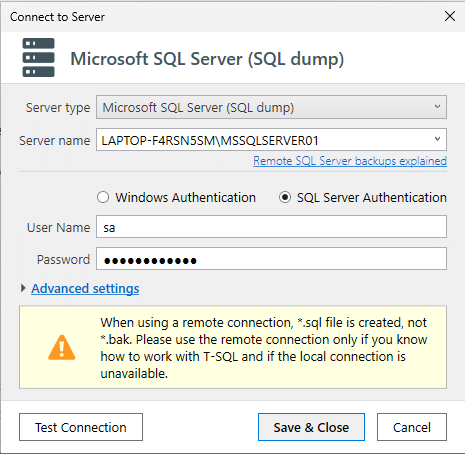
When creating a backup job in SqlBackupAndFTP, select a remote connection type – Microsoft SQL Server (SQL dump):
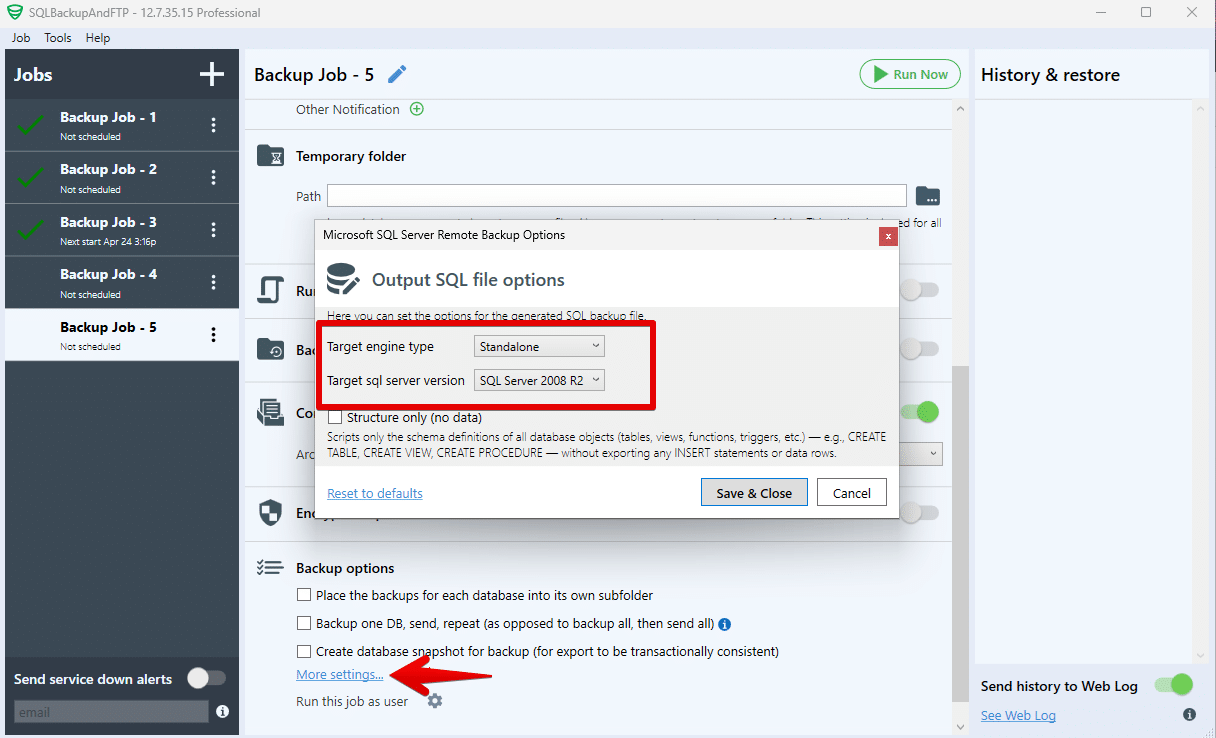
After selecting where to store the backup, go to the advanced backup job settings.
In the Target Engine Type field, select Standalone, and in Target SQL Server Version, choose SQL Server 2008 (R2):
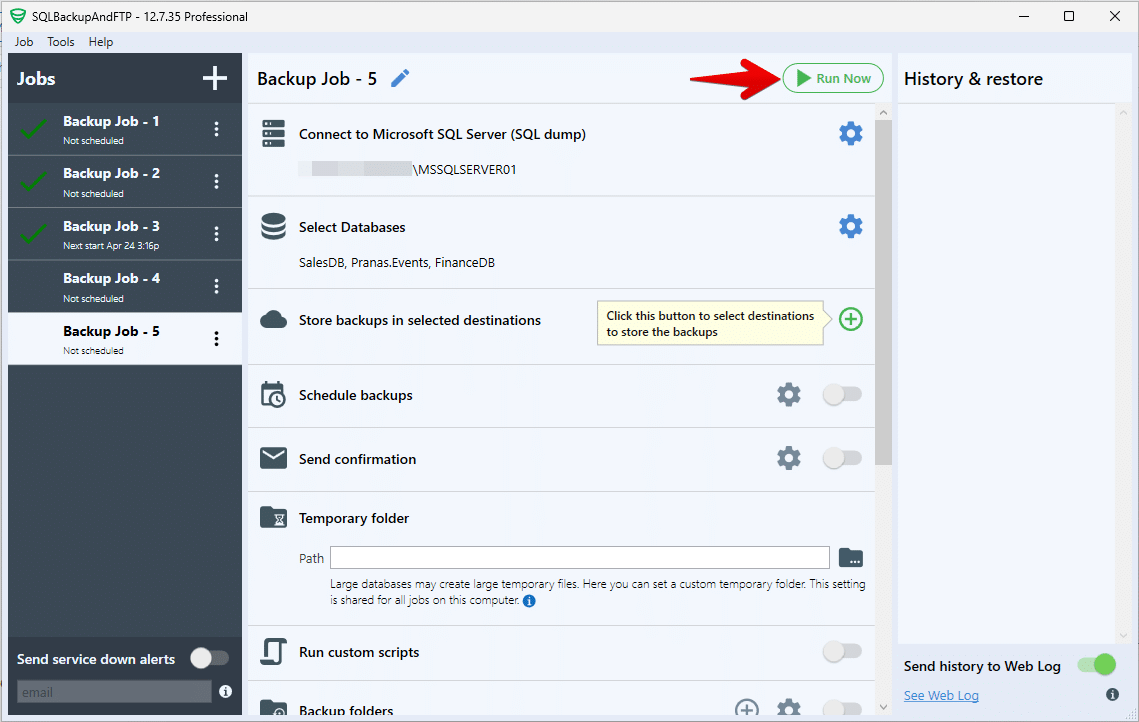
Then click Run Now button to start the backup process.
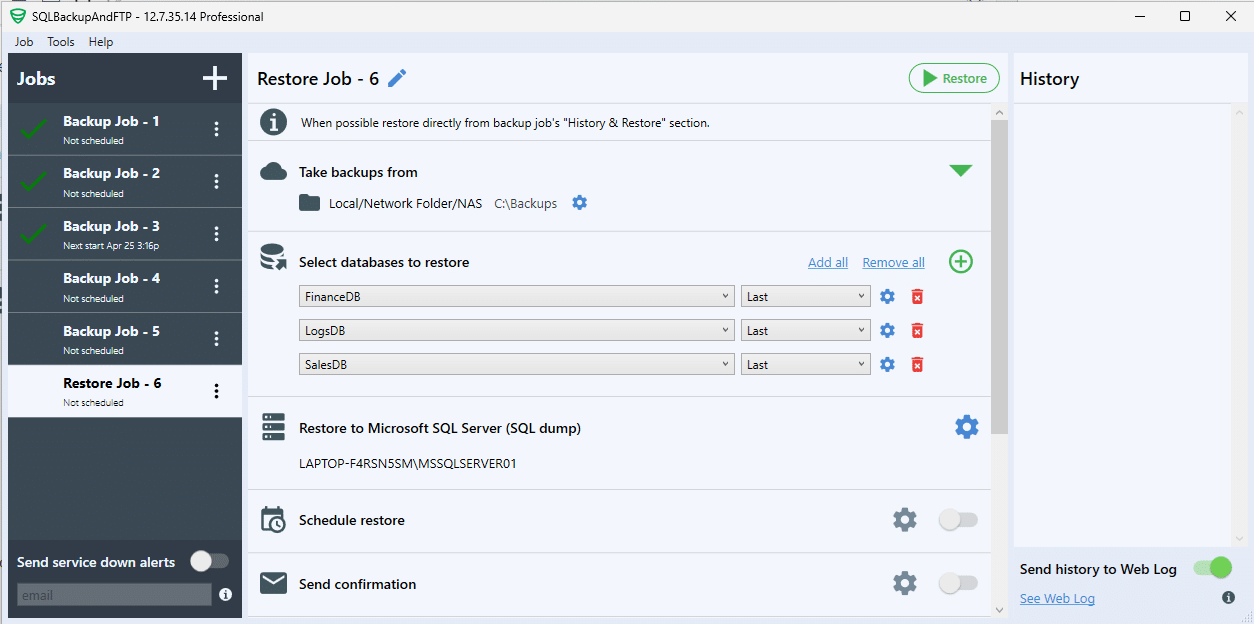
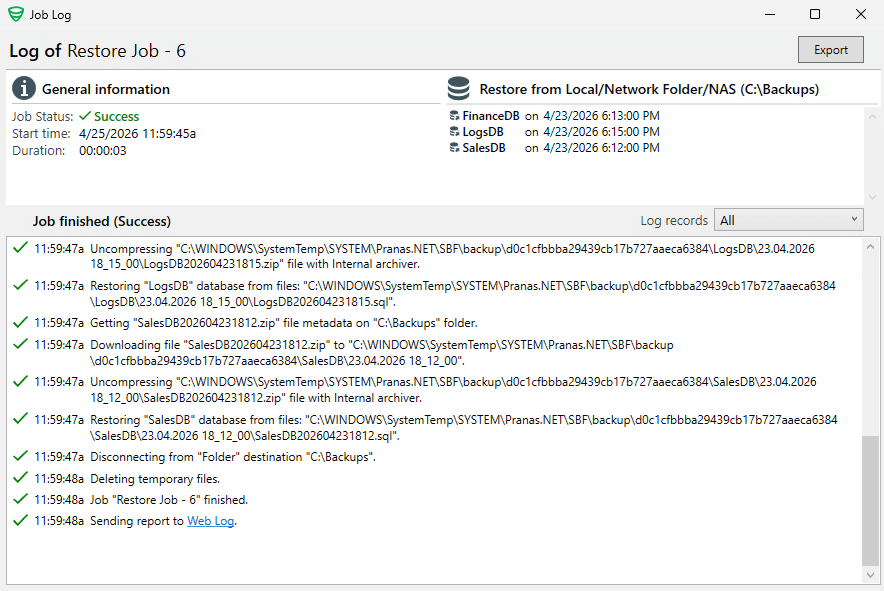
Using SQL Server managment studio
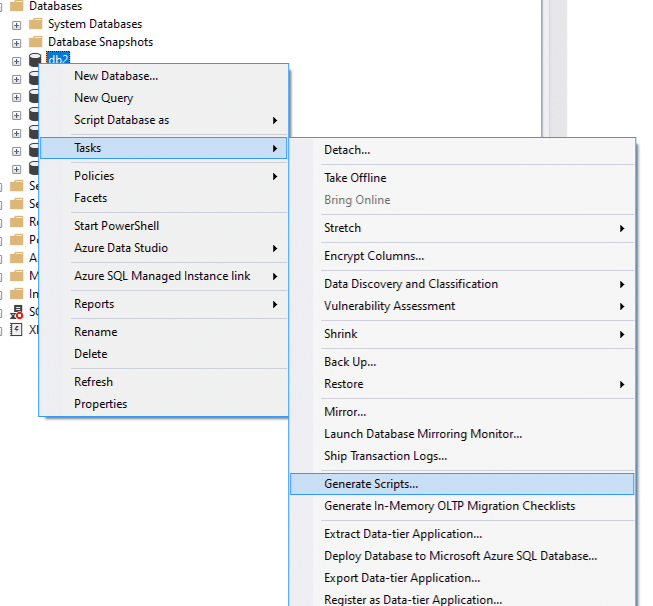
In SSMS, select Tasks → Generate Scripts:
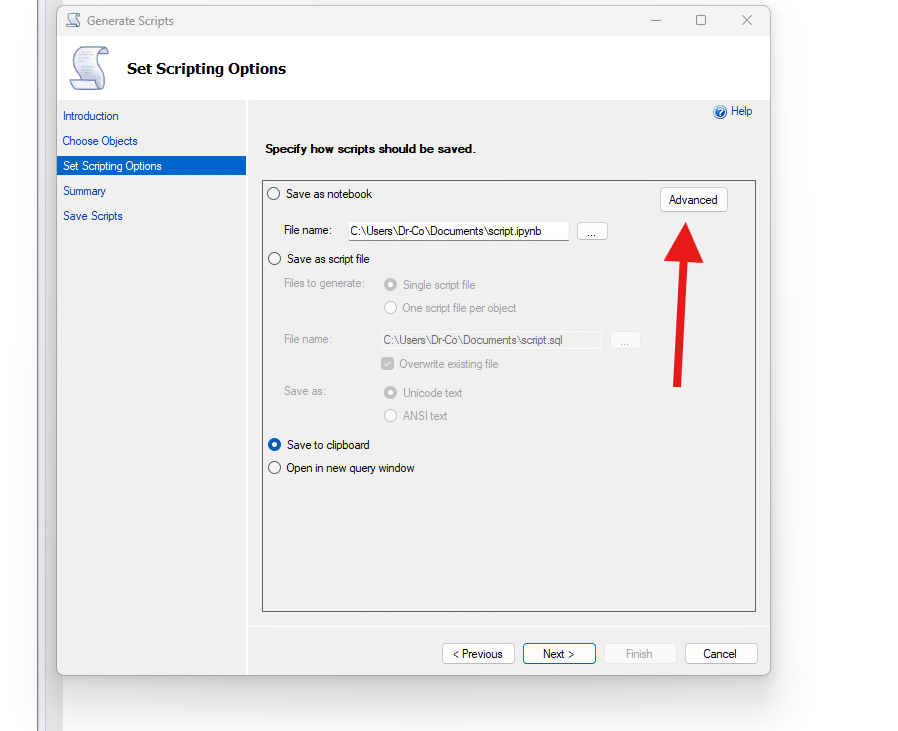
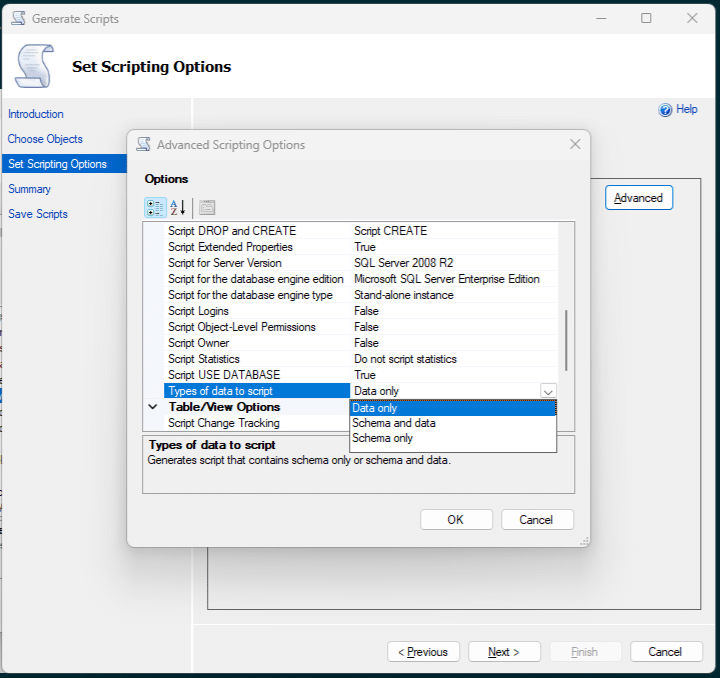
In the Set Scripting Options window, click the Advanced button:
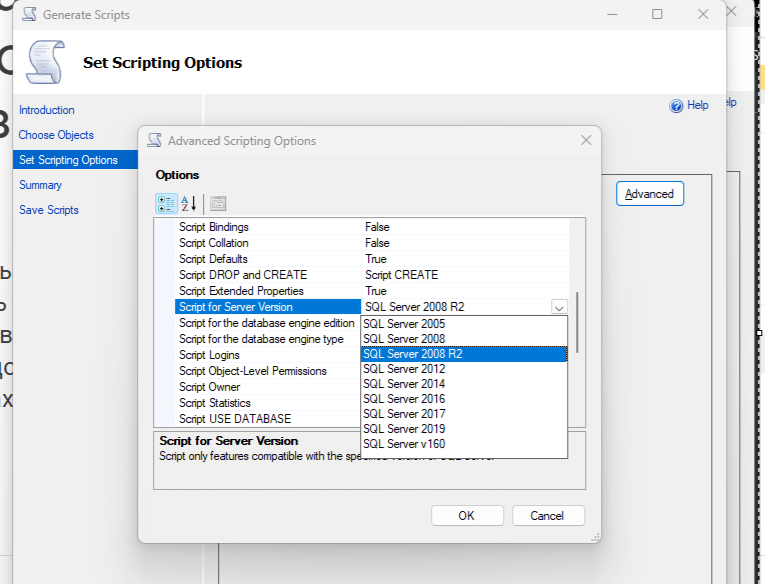
Set Script for SQL Server Version to SQL Server 2008:
Also, set Types of data to script to Schema and Data:
Complete the wizard — your script will be ready.
If your script is small, you can restore it simply by executing it in SSMS.
However, if the file is large, you can restore it using the command-line interface (sqlcmd). Learn more here:
https://sqlbak.com/blog/complete-guide-to-sql-server-backup-and-restore-using-the-command-line/